- 05th Nov '25
- KYC Widget
- 22 minutes read
 SHARE
SHARE SHARE
SHARE SHARE
SHAREStep-by-Step Guide to Optimize Images for Web and Performance
If you've ever tried to load a website, only for it to feel like watching paint dry, then you understand the struggle of image quality. Bad images not only frustrate your visitors but can also sink your SEO faster than a lead balloon. I've been there, staring at a pixelated mess thinking, 'This will never make it to my portfolio.' Optimizing images isn’t just a technical detail; it’s about creating a delightful experience for your users. Whether you’re a blogger, an e-commerce whiz, or just sharing cat memes, getting those images right is crucial. So, grab your digital toolbox—let’s explore some fun tips that I’ve learned the hard way, along with a few helpful plugins that’ll make your website shine without lagging like a sloth on vacation.Key Takeaways
- High-quality images can significantly enhance user experience.
- Image optimization is vital for better SEO rankings.
- Choosing the right image format impacts load times and quality.
- Using plugins can simplify the image optimization process.
- SVG files offer flexibility and scalability for sharp graphics.
Now we are going to talk about how to make our images fit perfectly on the web, because let’s be honest—nothing makes us cringe quite like a pixelated masterpiece or a page that takes forever to load. We've all been there, right? An image pops up, and it’s like waiting for a snail to finish a marathon!
Tips for Enhancing Image Quality on Websites
If we’ve learned anything from our collective internet adventures, it’s that images can make or break an online experience. A stunning image can capture attention, while a bad one can send visitors running faster than a cat on a hot tin roof. Here are some essential steps to keep in mind:- Choose the Right Format: Use JPEGs for photos and PNGs for graphics. It’s like choosing the right outfit for an event—there's a time and place for everything!
- Compress, Compress, Compress: Tools like TinyPNG or ImageOptim can shrink image sizes without losing quality. Think of it as trimming the fat off a steak, keeping the juiciness intact!
- Responsive Sizing: Be sure our images fit all screen sizes. You wouldn’t want to show up at a wedding in shorts while everyone else is dressed to the nines, right?
- Add Alt Text: Provide descriptions for images, not just for accessibility but also for SEO. It’s like giving our images a personality—after all, they're part of our digital family!
- Use a CDN: Content Delivery Networks help load images faster by delivering them closer to our audience. Think of it as having our pizza delivered directly from the oven to the customer's door!
Now we are going to talk about why optimizing images is crucial in our online escapades.
Why Are Optimized Images Essential?
Have you ever clicked on a website, only to feel like you’re watching paint dry? That’s often because of those hefty image files weighing things down. When images are too large, they can transform a speedy browsing experience into a snail-paced showdown. We all crave a smooth ride while surfing the net, right? That's where the magic of image optimization comes in. It’s all about trimming the fat on those file sizes, and it’s easier than you might think! There’s either lossy or lossless compression to help us out.
- Lossy Compression: Think of it as a good diet for your images. You lose some data, but the goal is to keep it looking fabulous.
- Lossless Compression: Here, we keep every pixel and still achieve a reduced size, which is like finding the perfect pair of jeans that fit just right!
One time, we experimented with a site full of images. After optimizing, what felt like an eternity of loading turned into a quick flash. It was like we transformed a classic tortoise into a speedy hare! Today, even big players like Squarespace are promoting image optimization as a must-do for their users. They understand that nobody has time to wait, especially when the latest cat video is just a click away.
So, how can we get started with optimizing our images? Here are some handy tips:
- Use plugins like Smush or TinyPNG—it’s as easy as adding a sprinkle of salt to your favorite dish.
- Choose the right format: JPEG is a go-to for photographs, while PNG is fantastic for images needing transparency.
- Always remember to resize images before uploading. No need to upload a high-resolution giant when a smaller size will suffice, like opting for a mini cupcake over a full-size cake when you’re just craving a bite!
Optimizing images isn’t just a technical task; it’s an integral part of our digital experience. The quicker we load, the happier our visitors are. And a happy visitor is more likelier to stick around or click on our stuff! So the next time we’re loading a page or designing a new site, let’s give those images the optimization they deserve. It’s not just about saving space; it’s about delivering a fantastic user experience that keeps folks coming back for more!
Now we are going to talk about how formatting your images can be a blessing in disguise for your website performance.
Why Image Formatting Matters
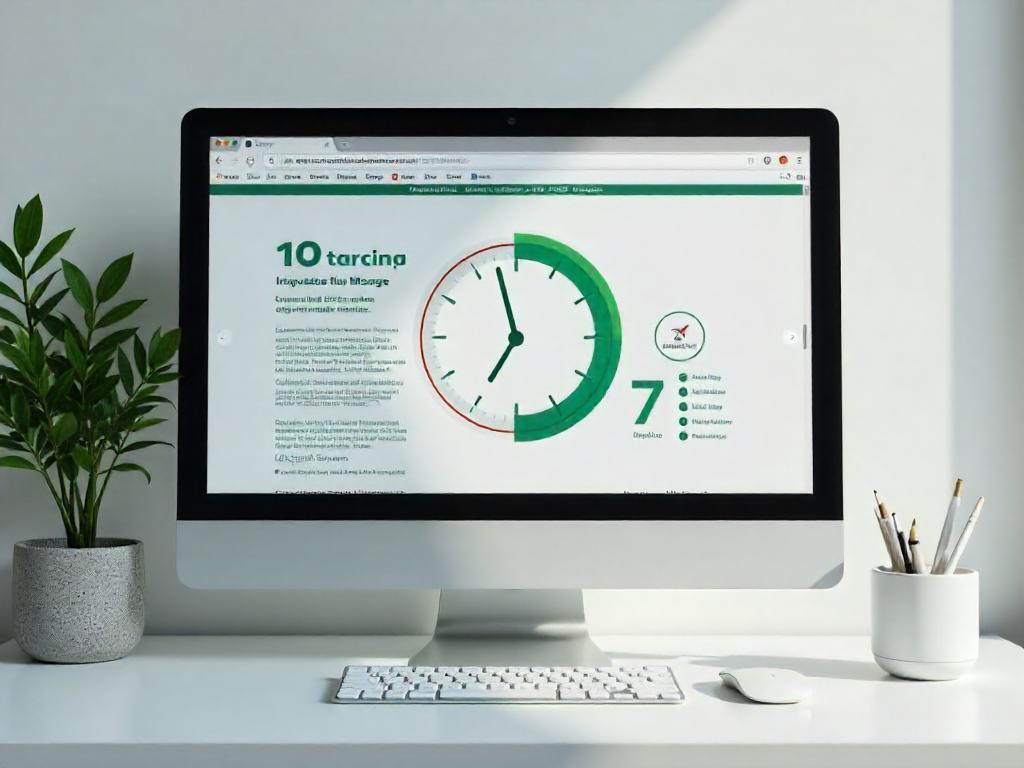
Ever tried loading a webpage that felt slower than molasses in January? That’s often thanks to heavy images weighing it down! According to recent stats, images account for about 21% of a webpage's total weight. That’s a hefty sum when your visitors are likely to bounce faster than a rubber ball if your page doesn't load in a jiffy.
Interestingly, optimizing images is often easier than assembling IKEA furniture, yet countless website owners overlook it. We all know that feeling— you’ve got your beautiful images, but they lack the right polish. Here’s why we should give a little TLC to those digital snapshots:
- Faster page load speed: If your visitors have to wait too long, they might just click away and order pizza instead. Who could blame them? No one wants to wait for a webpage, especially when dinner is calling!
- SEO benefits: When your images are optimized, they can help improve your site’s search engine rankings. It’s like giving your website a shiny new coat of paint. Who wouldn’t want to be first in line on Google?
- More efficient backups: Let’s face it, backups can feel like pulling teeth. Smaller images make this process faster— so we can all breathe a sigh of relief.
- Less bandwidth consumption: Smaller files mean you’re not hogging all the bandwidth. It’s a win-win; your users will appreciate the speed, and so will your server!
- Storage savings: Optimized images can take up less space on your server. It’s like getting rid of old clothes you never wear— your closet feels that much better!
An added perk? If you’re lucky enough to be with a hosting provider that offers automatic image optimization, you can reap these benefits without lifting a finger. Yes, please! Just a few clicks, and boom— it’s all taken care of.
| Benefit | Description |
|---|---|
| Faster Loading | Improves user experience as pages load quicker. |
| SEO Boost | Helps search engine rankings due to faster load times. |
| Faster Backups | Streamlines backup processes significantly. |
| Bandwidth Friendly | Smaller files mean less strain on networks. |
| Storage Efficiency | Less space consumed on servers for image files. |
So, let’s give our images the royal treatment they deserve! Because at the end of the day, who doesn’t want a snappier site that’s as appealing as a fresh batch of cookies?
Now we are going to talk about how to properly optimize images for web use. Whether you're an aspiring graphic designer or just trying to make your friend's cat pictures load faster on your blog, we can all agree that lighter images make the internet a happier place!
Tips for Optimizing Images for the Web
One key thing we need to hit home is the importance of achieving that sweet spot between a minimal file size and acceptable quality. We’ve all been there; you upload a stunning photo, and it’s bigger than your lunch bill!
When it comes to optimizing images, there are about a million ways to go about it. Like using a trusty friend who happens to have Adobe Photoshop—or maybe just experimenting with free plugins until you find your groove.
Two main factors pop up repeatedly: the file format and the compression type. A well-chosen duo can shrink your image size significantly—think of it like putting your jeans in the dryer after Thanksgiving dinner. Always a challenge!
1. Select the Best File Format
Before we go all Picasso on those images, let's choose the right format. Here’s a breakdown of our choices:
- PNG – These can produce high-quality images, but they often come with hefty file sizes. Great for images that need to be crystal clear—think logos!
- JPEG – A classic! This format uses a mix of compression techniques. Adjusting the quality can significantly help you balance clarity with file size.
- GIF – Ideal for those animated gems. Just remember: only 256 colors are available, so it’s a bit like picking your favorite ice cream flavor from a limited menu.
There are other formats like JPEG XR or WebP, but they have limited support on some browsers—like that cousin who tells bad jokes at every family gathering. Stick with JPEG for colorful images and PNG for simpler designs.
2. Compression Quality vs. Size
Imagine we’re at a buffet; the last thing we want is to pile our plates too high. Applying a low compression rate results in stunning quality but also sizable leftovers (hello, 2 MB images!).
If we crank up that compression too high, we won't just be disappointed, we’ll be left with an image that resembles a pixelated mosaic. For a happy medium, aim for a quality around 151 KB that still looks snazzy on the screen.
3. Know Your Compression Types
Let’s get into the nitty-gritty of compression types:
Lossy: We're cutting down birdies (data, that is). Sure, you’ll lose some quality, but the savings on file size can make your website soar.
Lossless: Think of this as an image spa day. Quality is preserved, but it might require some extra time (or tools) to get there. Check out tools like Adobe Photoshop or FileOptimizer!
4. Image Optimization Tools
There’s a treasure trove of application gems out there! Some help us become image wizards while others do the heavy lifting for us.
We love Affinity Photo for its wallet-friendly price and incredible features—definitely a soft spot for the budget-conscious!
Here’s our handy list of tools to check out:
- Adobe Photoshop
- GIMP
- Paint.NET
- GIFsicle
- JPEG Mini
- OptiPNG
- pngquant
- FileOptimizer
- ImageOptim
- Trimage
- ImageResize.org
Don’t forget about serving images smartly! Many high-quality hosts offer a CDN feature that speeds up delivery. It’s like having a reliable friend who always shows up with good snacks when it’s your turn to host!
5. Resizing Images to Fit
Previously, image scaling felt like resizing a giraffe in a tiny car. Now, with responsive images available since WordPress 4.4, we’re riding the wave of convenience!
WordPress generates multiple sizes of each image, allowing browsers to pick the best one. Check your HTML's srcset to see the magic in action!
As screen resolutions skyrocket, aim for images that are roughly 2 to 3 times the width of your content area—just enough to flatter your layout without causing chaos.
Want to manage your media library better? You could try out Media Cleaner, which spots unused media files faster than a dog sniffs out snacks. It even has a smart trashing system to recover files on the fly!
So, let’s get those images optimized and make the internet a little lighter and faster—cheers to that!
Now we are going to explore some fantastic tools for optimizing images on your WordPress site. If you've ever tried to upload a 10 MB photo of your cat doing a questionable backflip and found your website crawling like a tortoise on a lazy Sunday, you know the struggle is real!
Top Image Optimization Plugins to Consider
Using WordPress for your site is like having a great personal assistant who can make your life ten times easier—if you let them! Lucky for us, there are plugins that handle the heavy lifting of optimizing those image files. Why stress over image size when these handy tools can do the work while we sit back and enjoy a cup of coffee or contemplate why we ever thought a cat backflip was a good idea?
Plugins can automatically tidy up your images during upload, and they can even work on what's already living in your media library. That's a total win, especially for those of us who’ve amassed a treasure trove of oversized images. Here’s a lineup of some of the best image optimization plugins you can count on to keep your site speedy and sleek.
Just a quick reminder: relying solely on plugins isn’t the answer. We still have to be proactive. Uploading a hefty 2 MB image can chew up valuable disk space faster than a squirrel at a nut festival! Always resize your images first using a photo editing tool, then let the plugins polish them up.
Before diving online to grab a plugin, check with your hosting provider. Sometimes, they’ve got nifty features built-in that help with optimization right off the bat—like how your friend always seems to have snacks available before you think to ask!
-
Imagify Image Optimizer
Created by the brains behind WP Rocket, Imagify is a splendid solution for those looking to streamline their images. It has levels of compression options: normal, aggressive, and ultra. The restore feature is a lifesaver—ever uploaded a photo only to realize it looked like a Picasso? One-click restoration ftw!
-
Optimole
If cloud-based solutions tickle your fancy, Optimole might just be your new best friend. It sizes your images perfectly based on the user’s screen, so no more squinting at blurry photos. Plus, its lazy loading feature is basically a nap for your website until users need those images!
-
Optimus Image Optimizer
For those who side-step quality concerns, Optimus uses lossless compression. It almost feels like magic—because with zero quality loss, you get to keep your beautiful images without lugging around heavy files.
-
WP Smush
WP Smush can bulk smush up to 50 images at once! No more waiting around like it’s the DMV. It scans and compresses as you upload, and it’s a pro at handling JPEG, GIF, and PNG formats.
-
TinyPNG
TinyPNG knows how to compress images without losing charm. TinyPNG will give you about 100 images optimized per month before you need to consider upgrading. Plus, it plays nice with JPEGs and PNGs. Talk about a tidy package!
-
ImageRecycle
Have images or PDFs that need sprucing up? ImageRecycle is your go-to plugin. With optional settings to exclude smaller files from compression, it’s like having a personal shopper—declining anything that isn’t worthy of your collection.
-
EWWW Image Optimizer
No size limits and loads of customization options? Yes, please! The EWWW Image Optimizer caters to everyone, whether you're a small blog or a massive site. It’s like your image optimization buffet!
These plugins can save time and effort, ensuring we don't get tangled in image optimization while trying to foster creativity and innovation. Cheers to faster websites, smooth uploads, and perhaps fewer regrets about those cat photos!
Now we are going to reveal how optimizing images can supercharge your website's performance, especially if you're working with WordPress. Spoiler alert: it’s easier than getting a cat to cooperate for a selfie!
Streamlining Images for Optimal Performance
Uncompressed JPGs
So, we kicked off our little experiment by uploading six uncompressed JPGs, each tipping the scales at over 1 MB. It felt a bit like packing a suitcase for a weeklong trip but only bringing lead weights! After running five tests using Pingdom, we discovered that our total load time was a staggering 1.55 seconds, with a hefty page size of 14.7 MB. Talk about slow as molasses in January!
Compressed JPGs
Next, we tried using the Imagify plugin, cranking it up to the “aggressive setting.” And voila! Our total load time plummeted to just 476 ms, while the page size shrank down to a featherweight 2.9 MB. That’s like trimming the fat off a steak!
- Load time decreased by 54.88%
- Page size reduced by 80.27%
What a difference! It’s amazing how a few tweaks here and there can make a site go from a snooze-fest to a dynamite experience.
Besides, when you consider that there’s almost no other optimization that can deliver such impressive gains, it seems that image optimization is the unsung hero of web development! And the cool part? The plugin handled all the heavy lifting while we sipped coffee. Oh, the joys of automation!
Now, if someone were to switch their host to a faster provider, like Kinsta, they could see speed increases of over 45%. Just imagine! Faster images and a turbocharged host—talk about a double whammy! Boom!
By optimizing images—whether through a photo editing tool or a handy WordPress plugin—users can also bid farewell to those pesky “Optimize images” warnings that pop up in tools like Google PageSpeed Insights. No one likes warnings unless they come with cupcakes, right?
Wrap-Up with Resources
If you're faced with other optimization warnings, don’t just shrug them off! Check our posts on Google PageSpeed Insights and definitely don’t miss our detailed Pingdom walkthrough.
We’ve put our experience into an ebook and a video course. Click to download The Guide to Managing 60+ WordPress Sites!
Next, let's chat about the pros of using SVGs for our graphics. Spoiler alert: they're pretty nifty!
The Perks of Using SVG Files You Should Check Out
- SVGs scale seamlessly in browsers and editing tools, making them an artist's best friend.
- Google loves SVGs as much as it does JPGs and PNGs, so no need to sweat about SEO!
- Typically, SVG files come in smaller sizes compared to their PNG and JPG cousins, speeding up loading times.
Just the other day, while reorganizing our digital toolbox, we stumbled upon Genki’s article comparing image formats. It was like opening a box of chocolates—so many surprises! He found some stellar insights about file sizes:
| Image Type | Optimized Size (KB) |
|---|---|
| JPG | 81.4 KB |
| PNG | 85.1 KB |
| SVG | 6.1 KB |
Crazy, right? That SVG file is practically a featherweight champ, being 92.51% smaller than a JPG. Talk about a win for speed! If we need to jazz up our WordPress sites, SVGs are like that friend who brings snacks to the party—utterly essential.
So, while we’re all about keeping things sharp and shiny, let’s make sure we choose our file formats wisely. It's 2023, and we’re here for fast-loading content and sights that sparkle without weighing us down—sort of like a good pair of shoes. They might look great, but if they slow us down, what’s the point? Jump on the SVG bandwagon!
Now we are going to talk about how we can make images work for us on the web. We know that big, heavy images can be slower than a tortoise in molasses. So, without further ado, let’s dive into some tips and tricks that can help us get the most out of our images without sacrificing speed or quality.
Top Tips for Image Optimization on the Web
- Consider using a plugin that compresses and optimizes images on external servers. Trust us; your website will thank you.
- Whenever possible, opt for vector images along with your faithful PNGs and JPGs. They scale like a champ!
- Ever heard of a CDN? It helps your images zip across the globe faster than a cheetah on roller skates. Seriously, it’s magical.
- Be brave! Remove any unnecessary image data. Less is more, right?
- Cropping is your friend. Cut out all that white space and recreate it through CSS for a sleeker look.
- CSS3 effects can add a sprinkle of magic without adding bulk. Use ‘em when you can!
- Save images at the right dimensions. WordPress now does wonders with responsive images, so you've got options.
- Don't forget to use .ico files for your favicon; nobody wants a bland icon.
- Web fonts should replace text in images for cleaner, scalable looks. Why settle for less?
- Use raster images wisely; save them for scenarios where detail matters, like a family portrait awkwardly snapped at Thanksgiving.
- Remember, a smaller color palette helps! Reduce that bit-depth for a lighter load.
- Try lossy compression; it’s like eating a slice of cake—better when it comes with a few calories trimmed off.
- There's no shame in experimenting! Test different settings for each format until you find the perfect fit.
- Need a little animation? Go for GIFs but remember to compress them to keep load times down.
- High detail? PNG is your go-to for images that need to shine.
- General photos? JPGs are the old faithful of the image world—great for snapshots.
- Don’t forget to clear out any image metadata. Less baggage means a smoother journey!
- Automate wherever possible; it’s like hiring a virtual assistant for your images.
- If you're feeling adventurous, consider lazy loading images for quicker page rendering.
- Use tools like Photoshop to save images as “optimized for web.” It’s worth it!
- Try out WebP in Chrome; those smaller image sizes can be a lifesaver.
Once we've fine-tuned our images, our sites will perform slicker than a penguin in a tuxedo! We’ll impress search engines, browsers, and visitors alike. Remember to check out our info on hotlinking, so you don't end up sharing your bandwidth party like it's a free-for-all.
Have you got your images optimized for better performance? What’s your secret sauce? Maybe you do things the old-fashioned way, or perhaps you’ve jumped on the plugin bandwagon? Share your techniques and what works for you in the comments!
Conclusion
Optimizing images is like prepping a delicious meal; a pinch here and a dash there makes all the difference. The right image can tell your story and keep visitors clicking, while the wrong one can send them packing. With a bit of effort and the right tools, you’ll have your images bursting with quality and charm. So, roll up those sleeves and sprinkle in some creativity. Trust me, your visitors will thank you, and your website will look sharp enough to cut through the competition!FAQ
- What is the significance of choosing the right image format?
Choosing the right format is crucial; use JPEG for photographs and PNG for graphics to ensure quality and compatibility. - How can compression improve image loading times?
Compressing images reduces their file size without significantly affecting quality, leading to faster loading times and improved user experience. - What does responsive sizing for images involve?
Responsive sizing ensures images fit different screen sizes, providing a seamless experience for users across devices. - Why is adding alt text to images important?
Alt text enhances accessibility and improves SEO by giving context to images, making them more useful for search engines and users alike. - What benefits does a Content Delivery Network (CDN) offer?
A CDN helps load images faster by serving them from locations closer to users, improving load times and overall site performance. - What is the difference between lossy and lossless compression?
Lossy compression reduces file size by removing some data, while lossless compression maintains all data, preserving image quality. - What tools can be used for image optimization?
Useful tools for optimization include Adobe Photoshop, GIMP, and plugins like TinyPNG and WP Smush, which streamline the compression process. - How can resizing images affect website performance?
Resizing images before uploading prevents unnecessarily large files from affecting load times, optimizing overall site performance. - What are the advantages of using SVG files?
SVG files scale seamlessly, are often smaller than raster images, and are favored by Google for SEO, making them an excellent choice for graphics. - Why is it important to optimize images for web use?
Optimizing images reduces loading times, improves user experience, enhances SEO, and saves server storage and bandwidth, making your site faster and more efficient.

 AI SEO Content Generation